AlmaLinux 10 - Installation instructions
Before you start
-
Check that your machine is properly registered (in case it is on the CERN network)
-
Check that CERN Domain Name Service is updated for your machine (in case it is in the CERN network):
host yourmachine command should return an answer.
-
Check that your machine meets the minimum system requirements
-
Memory: Minimum 2 GB (system will run with 1 GB but performance will be affected)
-
Disk space: 10 GB (including 1 GB user data) for default setup ( 1 GB for minimal setup)
-
Please see Network/PXE installation procedure, IF YOU USE it you may skip following points up to the system installation.
-
Prepare boot media (you will need a single recordable CD or USB memory key). (Check the boot media preparation page for instructions how to prepare (and check) your boot media.)
-
Available boot media - boot CD/USB image http://linuxsoft.cern.ch/cern/alma/10/BaseOS/x86_64/os/images/boot.iso (AlmaLinux 10)
-
Installation method - http: http://linuxsoft.cern.ch/cern/alma/10/BaseOS/x86_64/os (AlmaLinux 10)
-
Note: use CD/USB image installation method ONLY if Network/PXE installation is not possible.
System installation
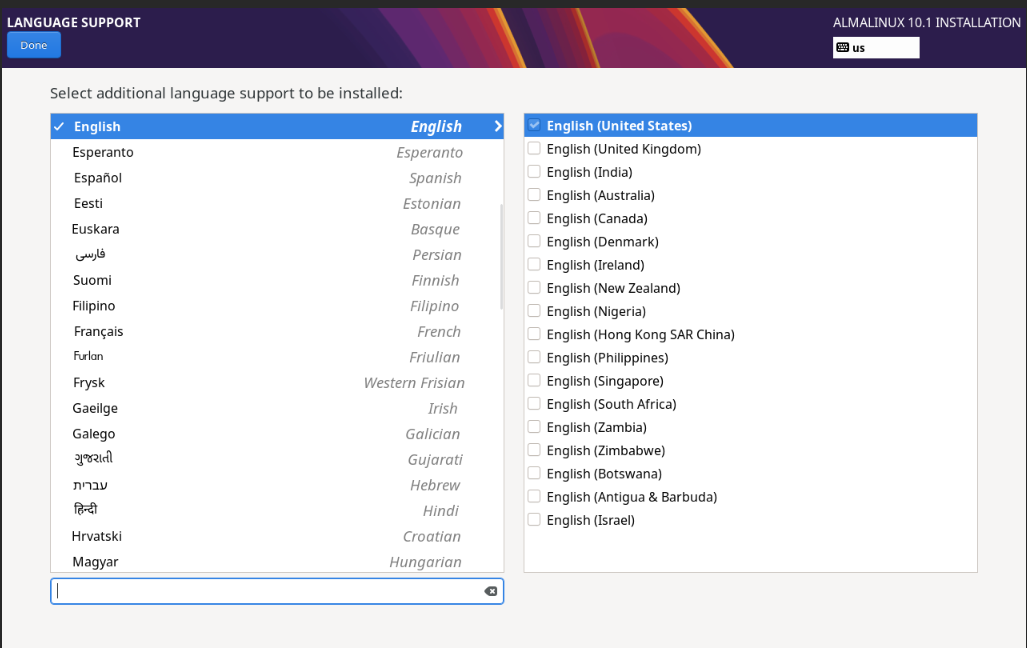
Installation language and keyboard selection:
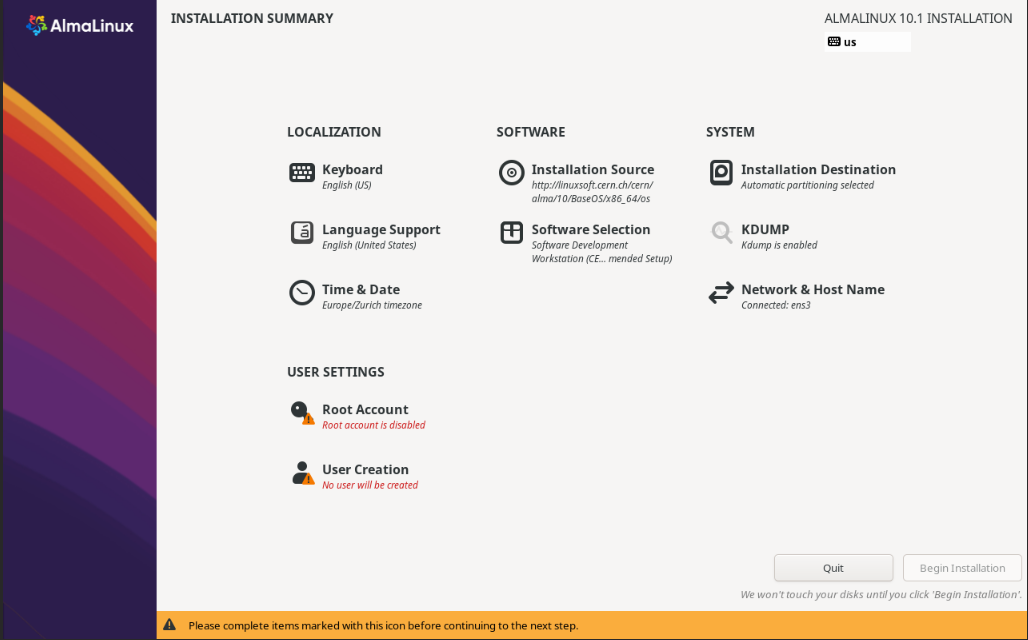
You will need to provide input for the items marked in red, 'Keyboard', 'Time & Date', 'Software Selection', 'Installation Destination'. It's best to start with 'Installation Destination'
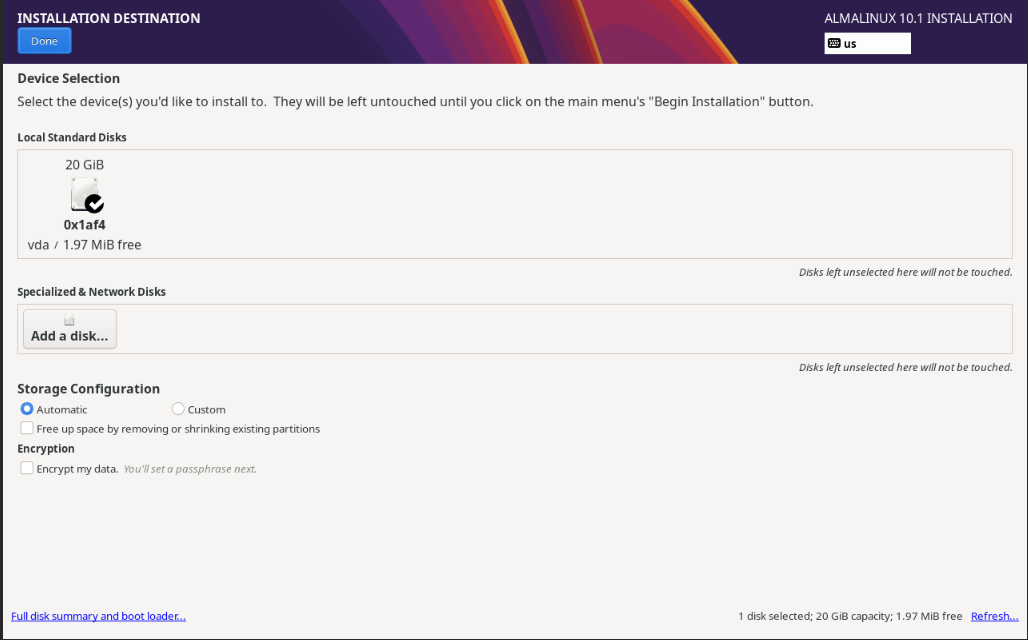
Select the device to be used for the installation:
Warning
As of 2025, all CERN-owned "endpoints" (e.g. laptops and office PCs) must have their local storage encrypted. If this applies to you, make sure to check the "Encrypt my data" box. This is strongly recommended for personal devices as well.
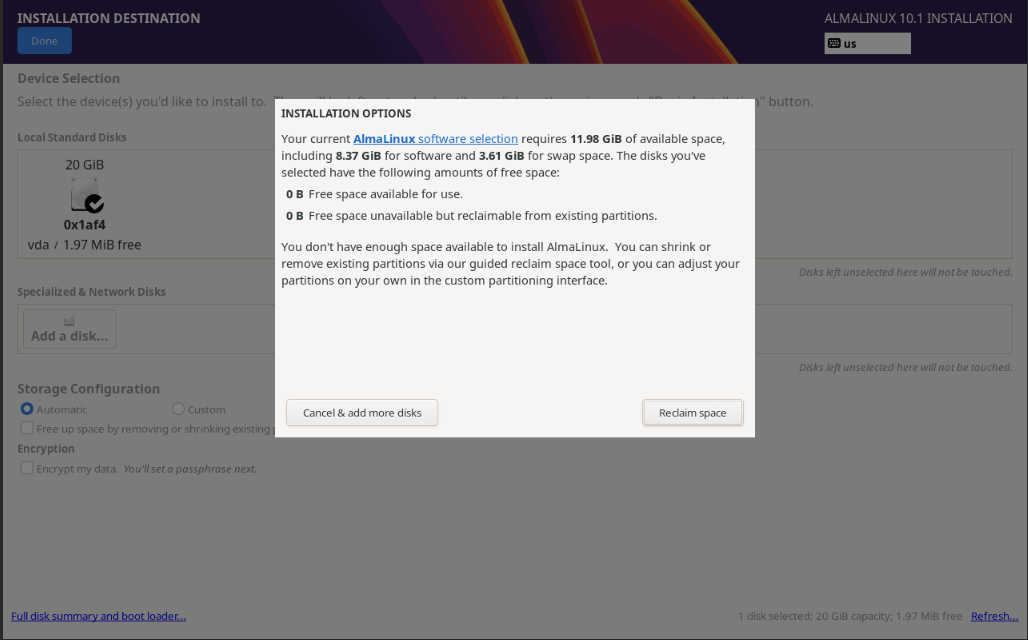
If selected device has been already used for previous version of operating system use 'Reclaim space':
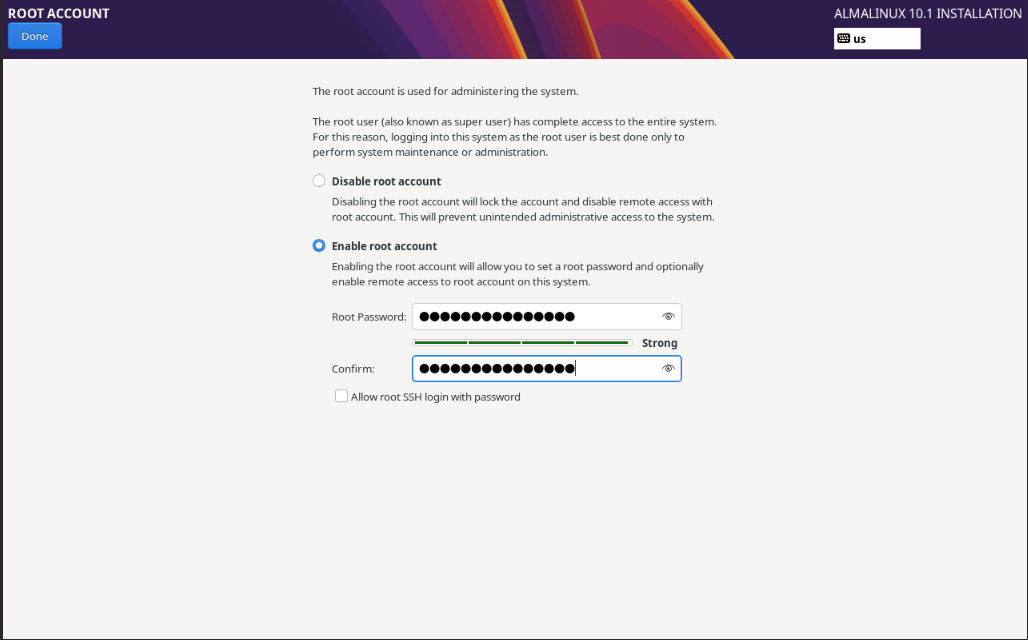
Set the 'root' (administrative account) password.
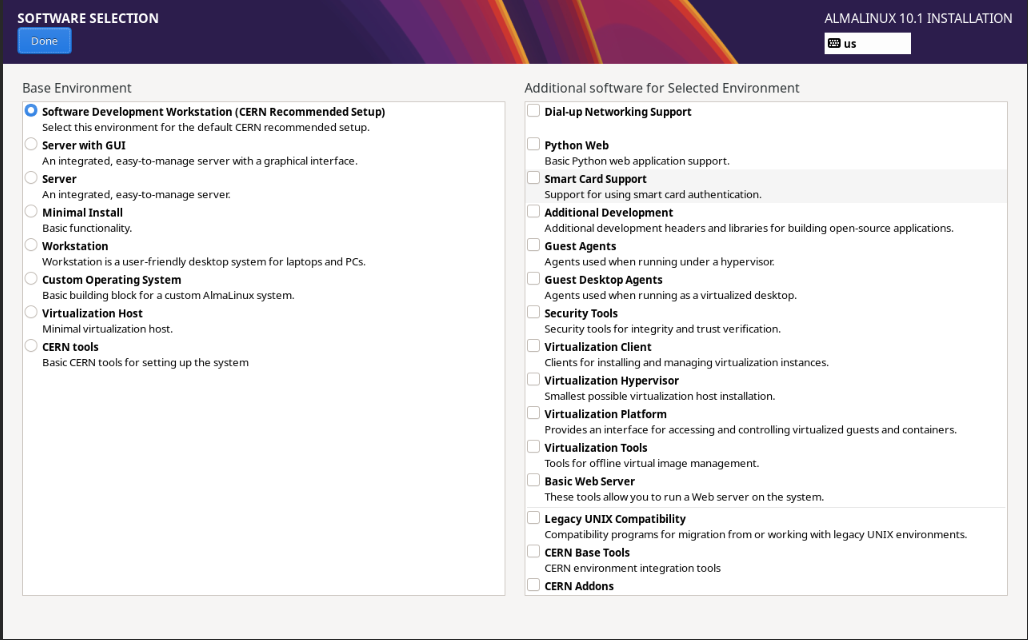
Select the software to install. Choose 'Software Development Workstation (CERN Recommended Setup)'
Enable CERN locmap
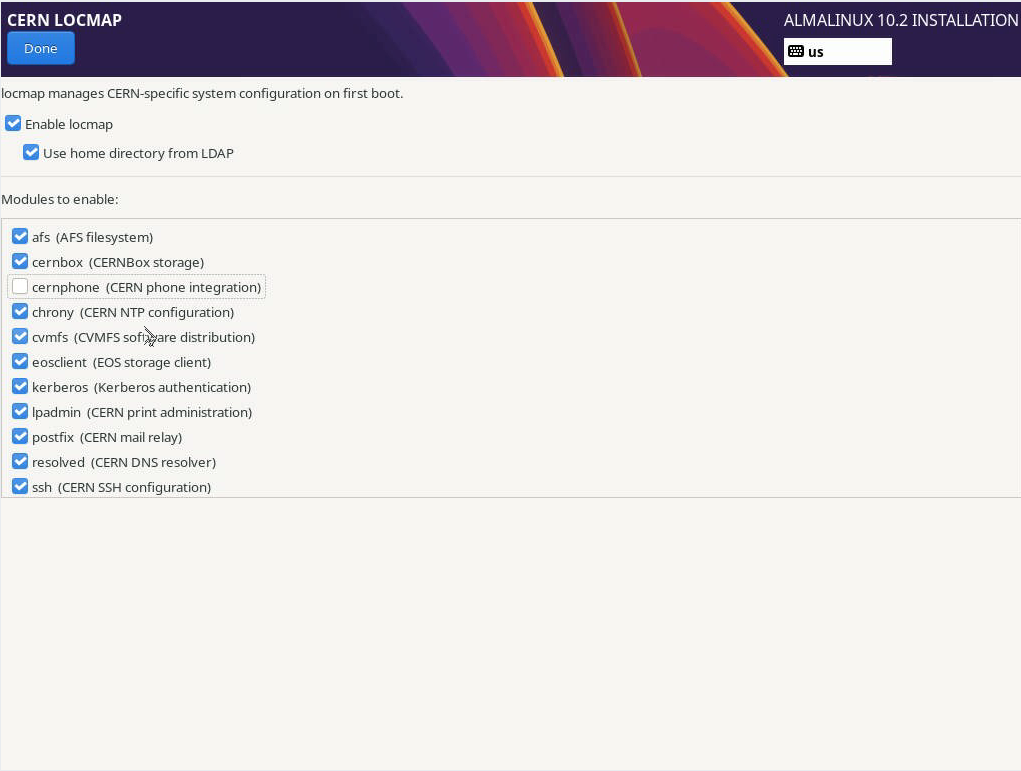
Enabling locmap is completely optional and it will not be enabled by default.
Depending on your choices, the locmap tool will be installed and invoked to create user accounts, provide root access, add printers, enable CvmFS, EOS, AFS ... using information based on the ownership of device (network.cern.ch)
Your screen should now have no more items in 'red', and should look similar to this: Select 'Begin installation':
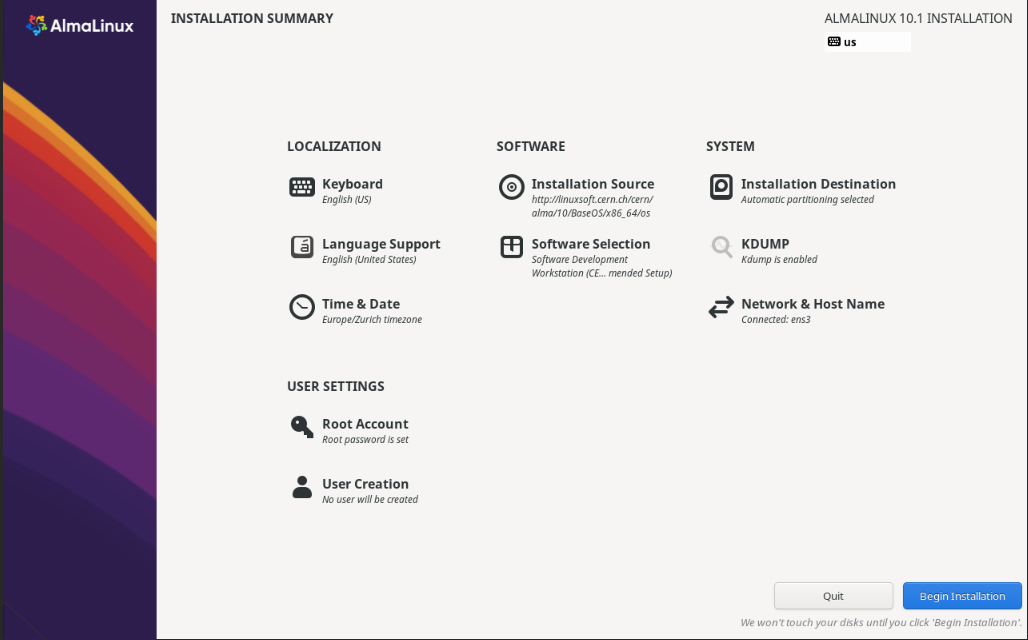
If locmap configuration was enabled locmap will now run and configure the system which can delay this first boot. The locmap run has a hard timeout of 10 minutes to ensure it does not completely block the first boot.
Manual post-install configuration adjustment
If you have selected not to run the 'CERN locmap' tool on your machine to perform site specific configurations but wish to profit from the locmap tool here are some small recipes to run the similar configurations by hand.
- First become root by either logging in as root, or using sudo
-
Run
sudo --login -
To configure automatic system updates
-
Run
dnf install dnf-autoupdate -
Install Locmap (the tool used to define CERN specific configuration)
- Run
dnf install locmap-release -
Run
dnf install locmap -
Apply CERN site configuration defaults (full configuration)
- Run
locmap --enable all -
Run
locmap --configure all -
Install AFS client (only):
- Run
locmap --enable afs - Run
locmap --enable kerberos -
Run
locmap --configure all -
Configure CVMFS (only)
- Run
locmap --enable cvmfs -
Run
locmap --configure all -
Configure Postfix (To align with e-mail best practices)
- Run
locmap --enable postfix - Run
locmap --configure all
You can also use /usr/bin/locmap --list to check all the available puppet modules with their current state.
Applying software updates
You should update your system immediately after its installation: Eventual security errata and bug fixes will be applied this way before you start using it.
As root run:
/usr/bin/dnf -y update
to apply all available updates.